
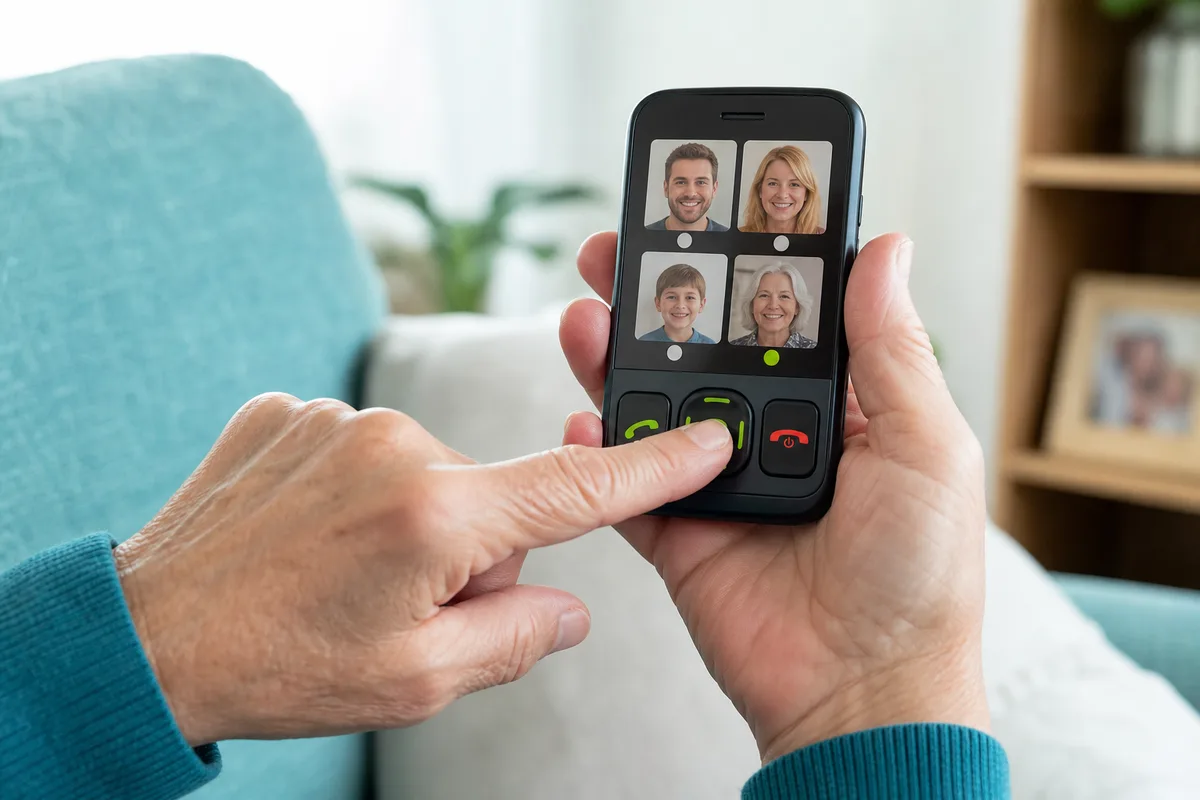
A photo button phone replaces an abstract contact list with something immediately familiar: the face of the person you want to call. For someone who finds numbers, menus or small text difficult, that can remove several decisions from a simple conversation.
Why photographs can help
On a conventional mobile, making a call may involve unlocking the screen, finding the contacts app, scrolling, reading several similar names and selecting the correct symbol. A personalised picture button can turn that sequence into one clear choice.
Photographs may be useful for people who recognise faces more readily than written labels, or anyone who becomes hesitant when navigating a menu. They can also help when limited dexterity makes repeated taps difficult.
Pictures are not automatically better for everyone. Some people prefer a large written name, a coloured button or a mixture of formats. The design should follow the user’s strengths.
Choosing effective contact pictures
Use photographs that are:
- recent and instantly recognisable;
- tightly framed around one face;
- taken against a simple background;
- well lit, with strong contrast;
- different enough from one another to avoid confusion.
Avoid crowded group photographs. If two contacts look similar, use a colour cue or clear name alongside the image. Ask the person using the phone to choose the pictures; family favourites are not always the images they recognise most quickly.
Decide who earns a button
Start with the people who are both important and likely to answer. A balanced contact set might include close family, a trusted neighbour and an appropriate support contact. Agree what each person should do if they receive a call that ends unexpectedly or the caller needs assistance.
OwnFone can be created with photographs, names or high-visibility contact buttons for up to 12 selected numbers. The handset is programmed before it arrives, helping the finished design feel intentional rather than improvised. You can build an OwnFone online and see examples of the simple calling approach.
Practise without turning it into a test
Introduce each button through ordinary conversations: “This is the picture you press when you fancy a chat with Sam.” Make two or three relaxed calls over several days. Keep the phone in the same visible place and avoid changing the layout unnecessarily.
A photo button is successful when it disappears into the routine. The person sees someone familiar, presses once and starts talking.